Best Wireless Keyboards 2026: Logitech vs Apple vs Keychron
A wireless keyboard either disappears under your fingers and just works, or nags you with lag, dead batteries, and a layout that fights your muscle memory. The features that decide it aren't flashy — they're typing feel, how easily it switches between your devices, and whether the battery lasts weeks or days.
We compared each wireless keyboard on typing feel and key type, multi-device switching, battery life and charging, layout and platform compatibility, ergonomics, build, and price. Keyboards were assessed against owner reviews and typing experience, weighting comfortable all-day typing, multi-device convenience, and reliability.

Logitech Mx Keys S
Best Overall: The Logitech MX Keys S is the best wireless keyboard for most people, especially productivity, combining excellent typing feel with seamless multi-device control and long battery life. Its low-profile keys have spherically-dished keycaps and a satisfying, quiet, tactile feel comfortable for all-day work, and the standout is Logitech's multi-device switching — pair up to three devices and switch instantly with dedicated keys, even copy-pasting across them via Flow.
Top picks ↓Top picks
Related articles

Logitech Mx Keys S
The best for productivity — comfortable low-profile typing, seamless switching across three devices (with copy-paste via Flow), auto-adjusting backlight, full-size layout, broad cross-platform support, and weeks of battery with USB-C charging. A premium membrane board, not mechanical, but the do-everything productivity benchmark.
The Logitech MX Keys S is the best wireless keyboard for most people, especially productivity, combining excellent typing feel with seamless multi-device control and long battery life. Its low-profile keys have spherically-dished keycaps and a satisfying, quiet, tactile feel comfortable for all-day work, and the standout is Logitech's multi-device switching — pair up to three devices and switch instantly with dedicated keys, even copy-pasting across them via Flow. Auto-adjusting backlight, a full-size number-pad layout, broad cross-platform support (Windows/macOS/Linux/iPadOS/Android), Bluetooth or a low-latency receiver, and weeks of battery with USB-C charging round it out. It's a low-profile membrane board (not mechanical) at a premium price, but for comfortable typing, effortless device switching, compatibility, and battery, it's the productivity benchmark.
Pros
- ✓Comfortable, quiet, satisfying low-profile typing
- ✓Seamless switching across three devices, copy-paste via Flow
- ✓Full-size layout, broad cross-platform support
- ✓Auto backlight; weeks of battery, USB-C charging
Cons
- ✗Membrane, not mechanical — no deep travel/click
- ✗Premium price for a non-mechanical board

Apple Magic Keyboard
The best for Apple — instant Mac/iPad pairing, a precise (if shallow) scissor feel, a sleek matching aluminium design, ~month battery, and Touch ID on Apple Silicon versions. Expensive, divisive flat feel, and no multi-device switching keys, but flawless within the Apple ecosystem.
The Apple Magic Keyboard is the pick for Mac and iPad users wanting seamless Apple-ecosystem integration and a clean, minimalist design. It pairs instantly with Macs and iPads, has a stable, precise (if shallow) scissor-switch feel, a sleek aluminium-and-white design that matches Apple hardware, and ~month battery life (Lightning or USB-C charging by version). Touch ID versions add fingerprint unlock and authentication on Apple Silicon Macs, which is genuinely convenient. It's the obvious choice for someone fully in the Apple ecosystem who values the integration, matching aesthetic, and simplicity — it just works flawlessly with Apple devices. The trade-offs: it's expensive, the shallow flat feel is divisive, it lacks multi-device switching keys (you re-pair to switch), and it's less ideal outside the Apple world. But for Apple users, it's the seamless companion.
Pros
- ✓Instant, flawless Mac/iPad integration
- ✓Sleek minimalist matching design
- ✓~month battery; Touch ID on Apple Silicon versions
- ✓Precise, stable scissor feel
Cons
- ✗Expensive; shallow flat feel is divisive
- ✗No multi-device switching; less ideal off-Apple

Keychron K8 Wireless
The best mechanical — real mechanical switches with deep travel and tactile/clicky feel, switch-type choice, Mac/Windows support, Bluetooth multi-device or wired USB-C, backlight/RGB, and often hot-swappable. Bulkier and can be noisier, but the standout for wireless mechanical typing feel and customisation.
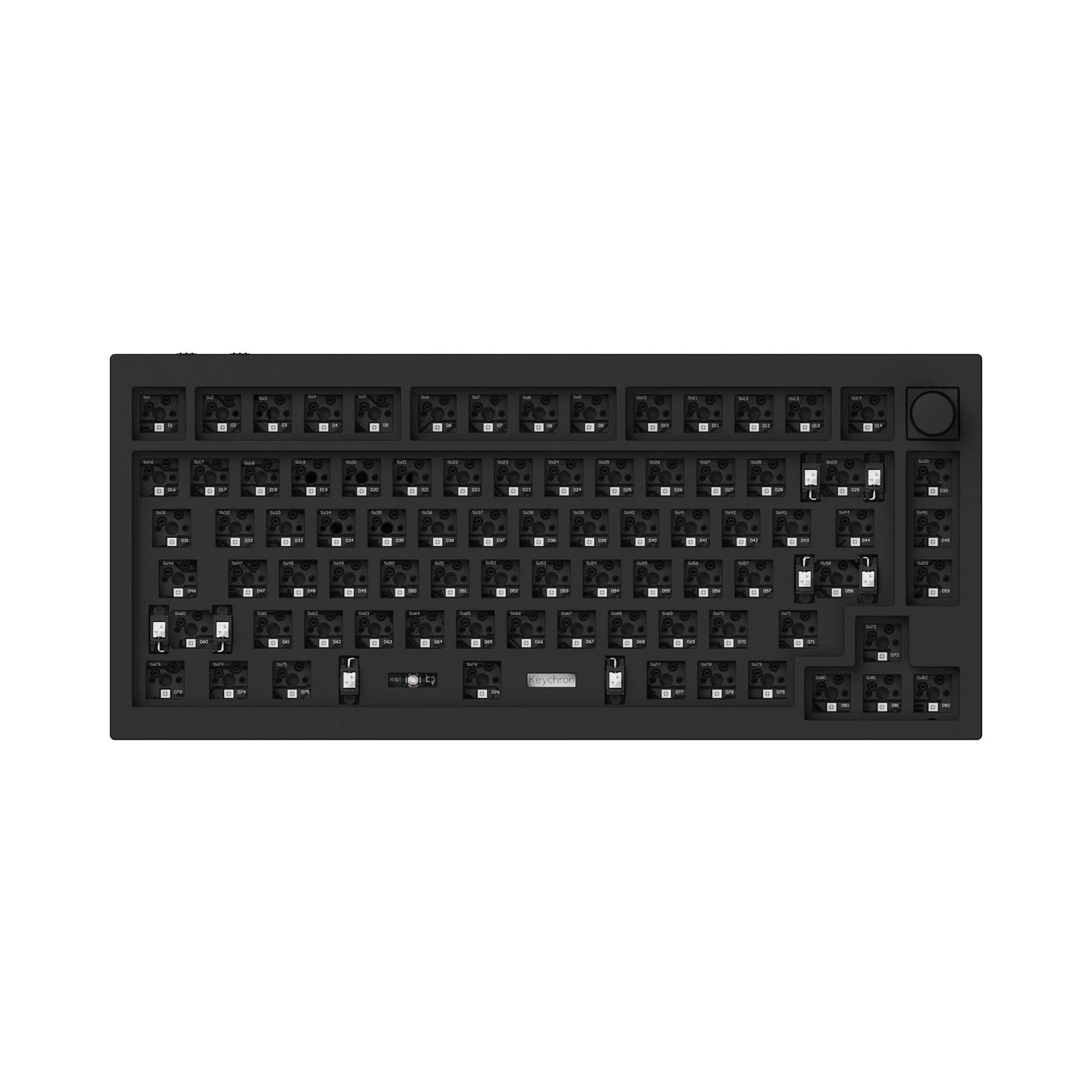
The Keychron K8 is the pick for a genuine mechanical keyboard wirelessly. Unlike the low-profile boards above, it has real mechanical switches with deep travel and a satisfying tactile or clicky feel enthusiasts prefer, plus a choice of switch type (tactile brown, clicky blue, linear red). It connects via Bluetooth (multi-device) or wired USB-C, works across Mac and Windows with swappable keycaps and a toggle, often has backlight or RGB, and many models are hot-swappable for changing switches. It's the standout for typing feel for those who want mechanical clack-and-travel without a cable. The trade-offs: it's bulkier and heavier than slim boards, the deeper keys and some switch noise aren't for every office, and RGB shortens battery life. But for wireless mechanical typing and customisation, it's the pick.
Pros
- ✓Real mechanical switches with deep, satisfying travel
- ✓Switch-type choice; often hot-swappable
- ✓Bluetooth multi-device or wired, Mac/Windows
- ✓Backlight/RGB and customisation
Cons
- ✗Bulkier, heavier, can be noisier
- ✗Shorter battery with RGB

Logitech K380
The budget multi-device pick — the same excellent three-device switching and broad cross-platform support as the MX Keys in a compact, lightweight board with pleasant quiet keys and up to two years of battery on replaceable AAAs, at a fraction of the price. No number pad and a more basic feel, but unbeatable multi-device value.
The Logitech K380 is the budget pick and a brilliant value for multi-device wireless typing. It's a compact, lightweight Bluetooth keyboard with the same excellent multi-device switching as the premium MX Keys (pair up to three devices, switch with dedicated keys), works across every platform, and has a pleasant, quiet, rounded-key feel — all at a fraction of the MX Keys price, with extremely long battery life (up to two years on replaceable AAAs, so no charging). It's the standout for multi-device convenience and broad compatibility cheaply, ideal for switching between a laptop, tablet, and phone or for a tidy minimal desk. The trade-offs: it's compact without a number pad, the feel is good but more basic than the MX Keys, and the rounded keycaps take brief adjustment. But for multi-device wireless typing on a budget, it's unbeatable value.
Pros
- ✓Excellent three-device switching at a low price
- ✓Broad cross-platform compatibility
- ✓Up to two years battery (replaceable AAAs, no charging)
- ✓Compact and portable
Cons
- ✗No number pad; more basic feel
- ✗Rounded keycaps take brief adjustment

Microsoft Sculpt Ergonomic
The ergonomic pick — a split, curved, domed layout with a cushioned palm rest that keeps wrists and forearms neutral to reduce strain during long typing, with a separate number pad and solid build. A real one-to-two-week adjustment period, bulky and not portable, USB-receiver based, but the standout for typing comfort and RSI concerns.
The Microsoft Sculpt Ergonomic is the pick for reducing wrist and arm strain during long typing. It's a split, curved keyboard with a domed key layout and a cushioned palm rest designed to keep wrists and forearms in a more natural, neutral position, which can genuinely reduce the strain and discomfort a flat keyboard causes during all-day typing — a real consideration for anyone with wrist pain or RSI concerns. It's wireless via a USB receiver, includes a separate number pad, and has the build quality of Microsoft's well-regarded ergonomic line. It's the choice for comfort and injury-prevention over aesthetics or portability. The trade-offs: the split-curved layout has a real one-to-two-week adjustment period, it's bulky and not portable, and it uses a USB receiver rather than Bluetooth. But for ergonomic comfort during long typing, it's the standout.
Pros
- ✓Split, curved, domed layout keeps wrists neutral
- ✓Cushioned palm rest reduces strain
- ✓Separate number pad, solid build
- ✓Genuinely helps with wrist pain/RSI
Cons
- ✗One-to-two-week adjustment period; bulky, not portable
- ✗USB receiver rather than Bluetooth
Which one is right for you?
For productivity across multiple devices
Logitech Mx Keys S
Comfortable typing, seamless three-device switching with copy-paste, a full layout, and weeks of battery make it the do-everything productivity benchmark.
For Mac and iPad users
Apple Magic Keyboard
Instant Apple integration, a sleek matching design, month-long battery, and Touch ID make it the seamless companion within the Apple ecosystem.
For a real mechanical feel wirelessly
Keychron K8 Wireless
Genuine mechanical switches with deep travel, switch-type choice, and Mac/Windows support deliver a satisfying tactile typing experience without a cable.
For multi-device convenience on a budget
Logitech K380
The same three-device switching and broad compatibility as the MX Keys in a compact board with years-long battery, at a fraction of the price.
For reducing wrist strain
Microsoft Sculpt Ergonomic
A split, curved, palm-rested layout keeps wrists neutral to genuinely reduce strain during long typing — worth the adjustment period for heavy typists.
Top pick: Logitech MX Keys S
The Logitech MX Keys S is the best wireless keyboard for most people, especially for productivity, because it combines excellent typing feel with seamless multi-device control and long battery life. The low-profile keys have spherically-dished keycaps and a satisfying, quiet, tactile typing feel that's comfortable for all-day work, and the standout feature is Logitech's multi-device switching: you can pair it with up to three devices (a laptop, a desktop, a tablet) and switch between them instantly with dedicated keys, even copying and pasting across them with Logitech Flow. Backlighting adjusts automatically to ambient light and your hands.
It's a full-size keyboard with a number pad, works across Windows, macOS, Linux, iPadOS, and Android (with platform-appropriate key labels), connects via Bluetooth or Logitech's reliable low-latency USB receiver, and has strong battery life (weeks with backlighting, far longer without) with USB-C charging. For someone who works across multiple computers or wants a comfortable, do-everything productivity keyboard that switches between devices effortlessly, it's the benchmark — which is why it's the most-recommended keyboard for office and home-office use.
The honest caveats: it's a low-profile membrane-style keyboard, so it won't satisfy someone who wants the deep travel and tactile click of a mechanical keyboard, and it's a premium price for a non-mechanical board. But for the best combination of comfortable typing, multi-device switching, broad compatibility, and battery life for productivity, the MX Keys S is the default.
Best for Apple and best mechanical: Apple Magic Keyboard and Keychron K8
The Apple Magic Keyboard is the pick for Mac and iPad users who want seamless Apple-ecosystem integration and a clean, minimalist design. It pairs instantly with Macs and iPads, has a low-profile scissor-switch typing feel that's stable and precise (if shallow), a sleek aluminium-and-white design that matches Apple hardware, and excellent battery life that lasts about a month per charge (recharging via Lightning or USB-C depending on version). Versions with Touch ID add fingerprint unlock and authentication on Apple Silicon Macs, which is genuinely convenient. It's the obvious choice for someone fully in the Apple ecosystem who values the integration, the matching aesthetic, and the simplicity — it just works flawlessly with Apple devices. The trade-offs: it's expensive, the typing feel is shallow and divisive (some love its precision, others find it too flat), it lacks multi-device switching keys (you re-pair to switch), and it's less ideal outside the Apple world.
The Keychron K8 (and Keychron's wireless mechanical range) is the pick for someone who wants a genuine mechanical keyboard wirelessly. Unlike the low-profile membrane and scissor boards above, the Keychron K8 has real mechanical switches with deep travel and a satisfying tactile or clicky feel that mechanical-keyboard enthusiasts prefer, plus the choice of switch type (tactile brown, clicky blue, linear red). It connects via Bluetooth (multi-device pairing) or wired USB-C, works across Mac and Windows with swappable keycaps and a toggle, often has backlighting or RGB, and many models are hot-swappable (letting you change switches). It's the standout for typing feel for those who want mechanical clack-and-travel without a cable. The trade-offs: it's bulkier and heavier than the slim boards, the deeper keys and (on some switches) noise aren't for everyone or every office, and battery life with RGB is shorter. But for wireless mechanical typing feel, it's the pick.
Choose between them by ecosystem and typing preference. The Apple Magic Keyboard wins for Mac/iPad users wanting seamless integration and a slim minimalist design. The Keychron K8 wins for anyone who wants a real mechanical typing experience wirelessly with switch choice and customisation. The Magic is the slim Apple companion; the Keychron the enthusiast's wireless mechanical board.
The budget multi-device and the ergonomic picks: Logitech K380 and Microsoft Sculpt
The Logitech K380 is the budget pick and a brilliant value for multi-device wireless typing. It's a compact, lightweight Bluetooth keyboard with the same excellent multi-device switching as the premium MX Keys (pair up to three devices and switch with dedicated keys), works across every platform (Windows, Mac, Chrome OS, iPadOS, Android), and has a pleasant, quiet, rounded-key typing feel — all at a fraction of the MX Keys price, with extremely long battery life (up to two years on replaceable AAA batteries, so no charging at all). It's the standout for someone who wants multi-device convenience and broad compatibility cheaply, ideal for switching between a laptop, tablet, and phone, or for a tidy minimal desk. The trade-offs: it's compact without a number pad, the typing feel is good but more basic than the MX Keys, and the rounded keycaps take brief adjustment. But for multi-device wireless typing on a budget, it's unbeatable value.
The Microsoft Sculpt Ergonomic is the pick for someone who wants to reduce wrist and arm strain during long typing sessions. It's a split, curved ergonomic keyboard with a domed key layout and a cushioned palm rest designed to keep the wrists and forearms in a more natural, neutral position, which can genuinely reduce the strain and discomfort that a flat keyboard causes during all-day typing — a real consideration for anyone with wrist pain or RSI concerns. It's wireless (via a USB receiver), includes a separate number pad, and has the build quality of Microsoft's well-regarded ergonomic line. It's the choice for comfort and injury-prevention over aesthetics or portability. The trade-offs: the split-curved layout has a real adjustment period (touch typists need a week or two to adapt), it's bulky and not portable, and it uses a USB receiver rather than Bluetooth. But for ergonomic comfort during long typing, it's the standout.
Choose between them by priority. The Logitech K380 wins on budget multi-device convenience and portability. The Microsoft Sculpt wins on ergonomic comfort and reducing wrist strain for long typing sessions. The K380 is the cheap, versatile, multi-device board; the Sculpt the comfort-and-ergonomics pick.
How to choose: typing feel, multi-device, battery, layout, and ergonomics
Decide on typing feel and keyboard type first, because it's the most personal and important factor. Low-profile membrane/scissor keyboards (MX Keys S, Apple Magic, K380) have shallow, quiet, comfortable keys ideal for productivity and quiet offices, and are slim and portable. Mechanical keyboards (Keychron) have deeper travel and a satisfying tactile or clicky feel that many find more enjoyable and precise to type on, with switch choices to tune the feel and sound, but they're bulkier and can be noisier. Ergonomic keyboards (Microsoft Sculpt) prioritise wrist comfort over feel or portability. If you type all day and value a comfortable, quiet, slim board, go low-profile; if you love a tactile typing experience, go mechanical; if you have wrist strain, go ergonomic. Try to type on the style before committing if you can, since feel is subjective.
Prioritise multi-device switching and battery if you use multiple devices. Multi-device switching — pairing the keyboard with several devices (laptop, tablet, phone) and switching between them with a key press — is genuinely transformative if you work across devices, and it's a standout feature of Logitech's keyboards (MX Keys S and K380); the Apple Magic Keyboard lacks dedicated switching (you re-pair). On battery, rechargeable keyboards (MX Keys S, Apple Magic, Keychron) last weeks per USB-C charge, while some (the K380) use replaceable batteries lasting many months to years with no charging at all — decide whether you prefer recharging or never thinking about it. Also weigh connection type: Bluetooth is universal and cable-free, while a USB receiver (used by some) offers lower latency but occupies a USB port.
Match the layout and ergonomics to your work and space. Decide whether you need a full-size keyboard with a number pad (essential for heavy spreadsheet/data work — MX Keys S, Microsoft Sculpt include it) or prefer a compact tenkeyless/75% board that saves desk space and keeps your mouse closer (K380, many Keychron models) — compact boards are more ergonomic for the shoulder (less reaching for the mouse) and more portable, but lack the number pad. Confirm platform compatibility and key labeling for your OS (most work cross-platform, but Mac and Windows layouts differ on modifier keys). And if you type for many hours daily, seriously consider ergonomics — wrist strain and RSI are real, and an ergonomic board (Microsoft Sculpt) or at least a comfortable low-profile board with a palm rest is worth prioritising over looks. Buy the typing feel you enjoy, with multi-device switching if you need it, the right layout for your work, and ergonomic comfort if you type heavily.
