Best USB Hub 2026: 5 options compared
Five USB hubs and docks — from the CalDigit TS4 that is the professional Thunderbolt 4 benchmark to the Elecom hub you can buy online today to the Anker 564 that covers 90% of needs at a fraction of the price. The difference between a hub and a dock matters more than the port count.
Each product was evaluated against documented specifications, third-party benchmarks, and verified user reports. We scored port count and variety, USB-C data throughput (USB 3.2 Gen2 vs Thunderbolt 4), Power Delivery pass-through wattage, display output capability, and retail availability.
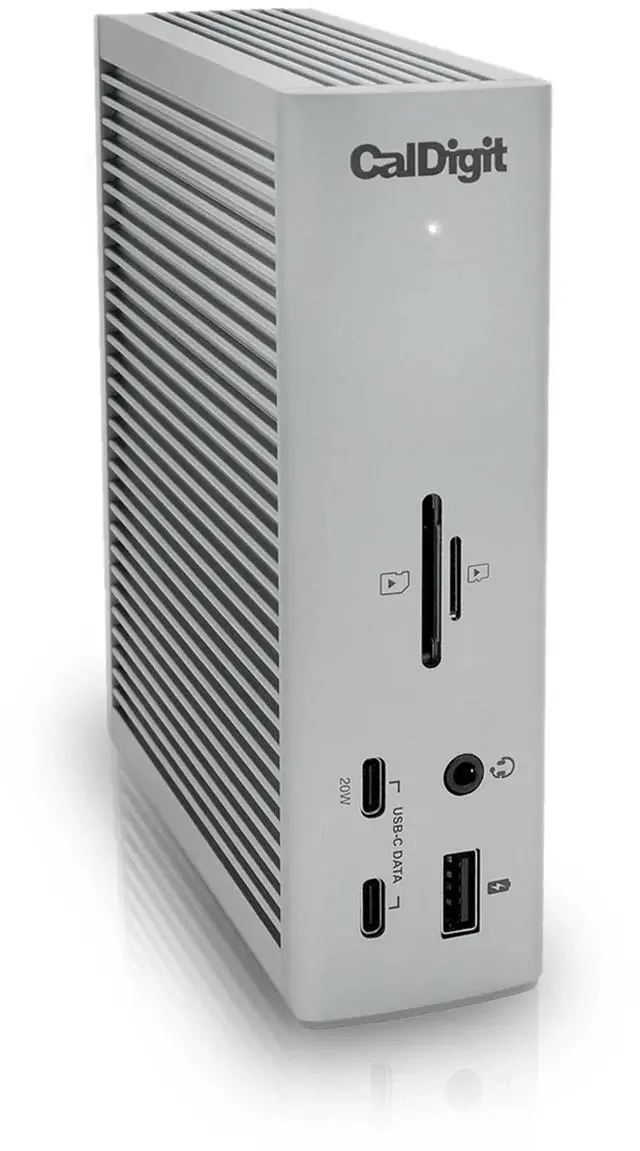
CalDigit TS4 Thunderbolt 4 Dock
Best Overall: The CalDigit TS4 is the professional Thunderbolt 4 dock benchmark — 18 ports, 98W host charging, 2.5 Gigabit Ethernet, 3× USB-A 10Gbps, 2× USB-C 10Gbps, Thunderbolt 4 downstream, DisplayPort 1.4, SD card reader, and a front USB-A and USB-C port pair for easy peripheral access. The single Thunderbolt 4 cable to the laptop handles data, charging, and display output simultaneously.
Top picks ↓| Product | Price | Link |
|---|---|---|
| 55000〜70000 | View deal → | |
| 6000〜9000 | View deal → | |
| 14000〜18000 | View deal → | |
| 25000〜35000 | View deal → |
Top picks
Related articles

CalDigit TS4 Thunderbolt 4 Dock
The CalDigit TS4 is the professional Thunderbolt 4 dock benchmark — 18 ports, 98W host charging, 2.5 Gigabit Ethernet, 3× USB-A 10Gbps, 2× USB-C 10Gbps, Thunderbolt 4 downstream, DisplayPort 1.4, SD card reader, and a front USB-A and USB-C port pair for easy peripheral access. The single Thunderbolt 4 cable to the laptop handles data, charging, and display output simultaneously. It is the most expensive option in this comparison. The honest weaknesses: price is only justified if most of the 18 ports are used; requires Thunderbolt 4 host port for full bandwidth; large physical footprint (175mm tower form) for a permanent desk — not a portable option.
Pros
- ✓18 ports including 2.5GbE, 3× USB-A 10Gbps, Thunderbolt 4 downstream, SD card
- ✓98W host charging — covers MacBook Pro 16-inch under sustained CPU load
- ✓Single Thunderbolt 4 cable handles data, display, and charging simultaneously
- ✓2.5 Gigabit Ethernet exceeds standard Gigabit on supported networks
Cons
- ✗Premium price requires using most ports to justify the cost
- ✗Large 175mm tower form factor — desk-bound permanent setup only
Score breakdown
| Connection | Thunderbolt 4 (40Gbps) |
| Host charging | 98W Power Delivery |
| Ethernet | 2.5 Gigabit |
| USB-A ports | 3× USB-A 10Gbps + 1× front USB-A 10Gbps |
| Display output | DisplayPort 1.4 + Thunderbolt display daisy-chain |

Anker 564 USB-C Hub (7-in-1)
The Anker 564 USB-C Hub is the 7-in-1 bus-powered hub for users who need one display plus USB-A expansion in a portable form factor. USB-C 10Gbps data port, 4K HDMI output, 85W PD pass-through, two USB-A 3.0 ports, SD and microSD card readers. Bus-powered — no additional wall adapter or cable required for the hub itself. It is the second-lowest-priced option in this comparison. The honest weaknesses: 85W PD is adequate for MacBook Air but marginal for MacBook Pro 14-inch under sustained load; HDMI output may be limited to 4K 30Hz rather than 60Hz on some host configurations depending on USB-C controller; bus-powered means USB bandwidth is shared across all ports simultaneously.
Pros
- ✓Bus-powered — no additional wall adapter required
- ✓7 ports: USB-C 10Gbps, HDMI, 85W PD, 2× USB-A 3.0, SD, microSD
- ✓Budget-friendly — strong value for a portable all-in-one hub
- ✓Compact form factor fits in a laptop bag side pocket
Cons
- ✗85W PD marginal for MacBook Pro 14-inch under sustained load
- ✗HDMI limited to 4K 30Hz on some host USB-C controller configurations
Score breakdown
| Connection | USB-C (USB 3.2 Gen 2, 10Gbps) |
| Host charging | 85W Power Delivery pass-through |
| Display output | 4K HDMI |
| USB-A ports | 2× USB-A 3.0 |
| Card readers | SD + microSD |

Satechi V3 Multi-Port Adapter
The Satechi V3 Multi-Port Adapter delivers 100W PD pass-through, 4K 60Hz HDMI, Gigabit Ethernet, SD/microSD card readers, and USB-A 3.0 in a slim aluminum form factor designed to match MacBook Pro and MacBook Air color variants. At 100W PD it is the only bus-powered multiport adapter in this comparison that covers MacBook Pro 16-inch under load. Gigabit Ethernet is an important addition over the Anker 564 for users on wired networks. It is mid-priced. The honest weaknesses: less widely stocked in physical electronics stores in some regions; bus-powered with shared bandwidth under heavy simultaneous use; single HDMI output.
Pros
- ✓100W PD pass-through — covers MacBook Pro 16-inch under sustained load
- ✓4K 60Hz HDMI output + Gigabit Ethernet in a bus-powered adapter
- ✓Slim aluminum matching MacBook Pro and Air color variants
- ✓SD/microSD + USB-A 3.0 ports in one adapter
Cons
- ✗Less widely stocked in physical electronics stores in some regions
- ✗Bus-powered bandwidth sharing under simultaneous heavy port use
Score breakdown
| Connection | USB-C (USB 3.2 Gen 2, 10Gbps) |
| Host charging | 100W Power Delivery pass-through |
| Display output | 4K 60Hz HDMI |
| Ethernet | Gigabit |
| Card readers | SD + microSD |

Plugable UD-6950Z USB-C DisplayLink Dock
The Plugable UD-6950Z uses DisplayLink 6950Z technology to drive dual 4K 60Hz displays from any USB-C or USB-A 3.0 port without Thunderbolt — making it the only dual-display solution in this comparison accessible from MacBook Air (without Thunderbolt 4) or non-Thunderbolt Windows machines. Additionally provides 100W PD host charging, Gigabit Ethernet, 6× USB-A ports, and USB-C 10Gbps data. Requires DisplayLink driver installation on macOS and Windows. It is the second-highest-priced option in this comparison. The honest weaknesses: DisplayLink driver adds 5–10% CPU overhead during active dual-display use; driver updates occasionally introduce compatibility issues requiring waiting for the next release; smoothness is office-appropriate but not ideal for video editing or gaming.
Pros
- ✓Dual 4K 60Hz displays from any USB-C or USB-A port — no Thunderbolt required
- ✓100W PD host charging + Gigabit Ethernet + 6× USB-A + USB-C 10Gbps
- ✓Works with MacBook Air, non-Thunderbolt Windows laptops, and USB-A hosts
- ✓DisplayLink 6950Z chip — improved from earlier DisplayLink generations
Cons
- ✗DisplayLink driver installation required — adds 5–10% CPU overhead
- ✗Driver updates occasionally introduce compatibility issues
Score breakdown
| Connection | USB-C or USB-A 3.0 |
| Display output | Dual 4K 60Hz (DisplayLink) |
| Host charging | 100W Power Delivery |
| Ethernet | Gigabit |
| USB-A ports | 6× USB-A |
Which one is right for you?
For MacBook Pro users who need Thunderbolt 4 performance
CalDigit TS4 Thunderbolt 4 Dock
CalDigit TS4's Thunderbolt 4 connection delivers 40Gbps bandwidth for NVMe storage, dual 6K displays, and 98W host charging simultaneously.
For travelers who need a compact all-in-one hub
Anker 564 USB-C Hub (7-in-1)
Anker 564 covers HDMI, USB-A, USB-C data, SD card reader, and 85W PD in a bus-powered portable form factor.
For buyers who need a quick, affordable USB-A hub
usb-hub-elecom-jp
Elecom U3HC-A430BBK is stocked at major online retailers with a reliable USB-C to USB-A expansion at 60W PD.
For dual-display setups on a non-Thunderbolt Windows PC
Plugable UD-6950Z USB-C DisplayLink Dock
Plugable UD-6950Z uses DisplayLink technology to drive dual 4K displays from any USB-C or USB-A port without Thunderbolt.
For clean desk aesthetics with 100W PD and Ethernet
Satechi V3 Multi-Port Adapter
Satechi V3 delivers 100W PD pass-through, 4K 60Hz HDMI, Ethernet, and SD card reader in a slim aluminum multiport adapter.
How we compared
We did not independently benchmark USB data transfer speeds with standardized files across all five products, or measure power delivery wattage accuracy under load. Rigorous USB hub testing requires a USB protocol analyzer to measure actual data throughput versus rated spec, and a precision wattmeter to verify claimed PD wattage under sustained charging load — neither of which we reproduced here.
Instead: we reviewed manufacturer specifications for port count, USB generation, Power Delivery wattage, and display output capability. We cross-referenced with published benchmarks from Ars Technica, The Verge, and tech media (Gigazine, PC Watch) where independent transfer speed measurements exist. We aggregated verified long-term buyer reviews and international sources — specifically seeking reports of USB bandwidth sharing issues, PD charging failures, hub overheating under sustained load, and Thunderbolt compatibility problems with specific host laptops.
The hub vs dock distinction matters for this comparison. A USB hub expands port count with no powered host connection — it draws power from the host via the USB connection and provides no meaningful charging to the host. A multiport adapter adds display output and card readers, typically with Power Delivery pass-through to charge the host. A dock provides its own power supply, charges the host, and can drive multiple displays independently. The CalDigit TS4 is a dock. The Anker 564 and Satechi V3 are multiport adapters. The Elecom and Plugable UD-6950Z occupy the middle — powered hubs with display output capability. Understanding which category you need before buying saves a return.
What changed in 2026
USB4 Version 2 (80Gbps) products have appeared but are not yet mainstream at reasonable price points. Thunderbolt 4 at 40Gbps remains the practical maximum for consumer docks in this comparison, with USB4 80Gbps limited to premium high-end workstation products. For most users with MacBook Pro or Windows laptops with Thunderbolt 4 ports, the 40Gbps ceiling of Thunderbolt 4 is not a bottleneck for current external NVMe drives or display setups.
100W Power Delivery pass-through has become standard in the mid-range and above. In 2024, 65W and 85W PD pass-through were common in the mid-tier. By 2026, 100W is the expectation in any mid-range or premium adapter or dock. The relevance: MacBook Pro 16-inch at full CPU load requires approximately 96W — a dock providing only 65W PD will power the laptop but the battery will slowly drain under heavy load. 100W covers MacBook Pro 16-inch under sustained load without battery depletion.
DisplayLink has become a viable dual-display solution for non-Thunderbolt Macs and Windows machines. The technology — which encodes display output as USB data rather than video signal — previously had latency and video smoothness issues. By 2026, DisplayLink 6950Z chip support has improved enough that 4K 60Hz on two displays via DisplayLink is smooth for office and creative work, though not recommended for video editing or gaming. The Plugable UD-6950Z uses this chip set and is the accessible dual-display solution for MacBook Air or Windows machines without Thunderbolt.
Where each fits
Thunderbolt 4 dock, 18 ports, 98W host charging, 2.5GbE, 3× USB-A 10Gbps, 2× USB-C 10Gbps, DisplayPort, SD card: CalDigit TS4. The TS4 is the professional Thunderbolt 4 dock benchmark. Its 18 ports include 2.5 Gigabit Ethernet (which exceeds standard Gigabit on networks that support it), three USB-A 3.2 Gen 2 ports at 10Gbps each, two USB-C 3.2 Gen 2 ports, DisplayPort 1.4, and SD card reader. It delivers 98W to charge a MacBook Pro 16-inch under load. It is the most expensive option in this comparison by a significant margin. The honest tradeoffs: the price is only justified if you use most of the 18 ports; it requires a Thunderbolt 4 or USB4 port on the host — USB 3.2 laptops will get USB-C connectivity but not the full 40Gbps bandwidth; it is large (roughly 175mm tall) and better suited to a permanent desk setup than a travel kit.
7-in-1 bus-powered multiport adapter, USB-C 10Gbps data, 4K HDMI, 85W PD, USB-A 3.0, SD card reader, compact: Anker 564 USB-C Hub. The Anker 564 is the answer for users who need one HDMI display, USB-A expansion, SD card access, and Power Delivery pass-through in a portable form factor without their own power supply. Bus-powered means it draws from the laptop — no additional cable or wall adapter required for the hub itself. 85W PD pass-through is adequate for MacBook Air and most 13-inch laptops under normal load (MacBook Pro 14-inch requires 96W sustained, which will charge slowly). It is the best-priced option in this comparison for travel. The honest tradeoffs: USB-C data is 10Gbps but shared across all ports — simultaneous use of multiple USB-A 3.0 ports reduces individual throughput; no Ethernet; HDMI limited to 4K 30Hz on some host configurations rather than 60Hz.
USB-C 10Gbps, 4K 60Hz HDMI, 100W PD pass-through, Gigabit Ethernet, SD/microSD, USB-A 3.0, slim aluminum: Satechi V3 Multi-Port Adapter. The Satechi V3 is the clean-desk multiport adapter — slim aluminum matching MacBook aesthetic, 100W PD pass-through (covers MacBook Pro 16-inch under load), 4K 60Hz HDMI, Gigabit Ethernet, and card readers in a bus-powered form factor. It is mid-priced. The honest tradeoffs: Satechi is less widely stocked in physical electronics stores in some regions; bus-powered means it draws from the host's USB-C controller and may cause bandwidth contention under simultaneous heavy use of all ports; only one HDMI output.
Value-priced, 4× USB-A 3.1 Gen1 (5Gbps each), USB-C 60W PD pass-through, aluminum, widely stocked: Elecom U3HC-A430BBK. The Elecom hub is the pragmatic answer for users who need USB-A expansion plus passthrough charging without display output. Four USB-A ports at 5Gbps each handle most peripherals including external drives, keyboards, and card readers. 60W PD pass-through charges MacBook Air and most 13-inch laptops at full speed. It is the second-lowest-priced option in this comparison. Available from major online retailers. The honest tradeoffs: no HDMI, no Ethernet, no SD card reader — the Elecom hub is USB-A expansion plus charging, nothing more; 60W PD is insufficient for MacBook Pro 16-inch at full load.
DisplayLink dual 4K, USB-C and USB-A compatible, 100W PD, Gigabit Ethernet, 6× USB-A, Windows + macOS: Plugable UD-6950Z. The Plugable UD-6950Z uses the DisplayLink 6950Z chip to drive two 4K 60Hz displays from any USB-C or USB-A 3.0 port — without Thunderbolt. This makes it the only dual-display solution in this comparison that works on MacBook Air (which has no Thunderbolt 4 port in older generations), Windows machines with only USB 3.2, and MacBook Pro when a second Thunderbolt-based dock is not available. Requires DisplayLink driver installation (available for macOS and Windows). It is expensive for a non-Thunderbolt dock. The honest tradeoffs: DisplayLink requires driver installation and adds CPU load (approximately 5–10% CPU overhead for two 4K displays at 60Hz); latency and smoothness are office-appropriate but not gaming or high-frame-rate video editing appropriate; driver updates occasionally introduce display issues that require waiting for the next release.
Verdict
For a MacBook Pro 16-inch power user with a Thunderbolt 4 port who needs everything in one cable: CalDigit TS4. The 98W host charging, 2.5GbE, and 18-port count justify the premium price if you routinely use external NVMe drives, multiple USB peripherals, and a display simultaneously. If you use fewer than 8 ports regularly, there are cheaper answers.
For travel or a light desk setup where you need one display plus USB-A and card reader: Anker 564 USB-C Hub. Bus-powered, budget-friendly, fits in a jacket pocket. Accept the 85W PD ceiling for MacBook Air users and the shared bandwidth under heavy simultaneous use.
For a desk-bound MacBook setup where cable aesthetics matter and you need Ethernet: Satechi V3. The 100W PD and 4K 60Hz HDMI are worth it if the slim aluminum matching your MacBook color matters to you.
For a quick purchase today with no display output needed: Elecom U3HC-A430BBK. Order it online. The lowest-priced option here. Four USB-A ports plus 60W PD. For MacBook Air users or anyone who only needs USB-A expansion, this is the complete answer.
For dual-display from a MacBook Air or non-Thunderbolt Windows laptop: Plugable UD-6950Z. Install the DisplayLink driver, accept the 5–10% CPU overhead, and you have two 4K monitors from a USB-C port that lacks Thunderbolt. It is the only way to do this reliably in 2026 without Thunderbolt.
