Best Graphics Tablets 2026: Wacom vs XP-Pen vs Huion
The biggest decision in buying a drawing tablet isn't the brand — it's whether you want a screen you draw directly on, or a screenless pad where you look up at your monitor. Get that choice wrong for your workflow and even the best tablet feels frustrating; get it right and a $60 pad can serve you for years.
We compared each graphics tablet on screen versus screenless type and workflow, pen pressure sensitivity and tilt, driver reliability, software and OS compatibility, build and active area or screen size, and price-to-performance. Tablets were assessed against independent reviews and artist feedback, weighting driver stability and the screen/screenless fit to workflow over headline pressure numbers.
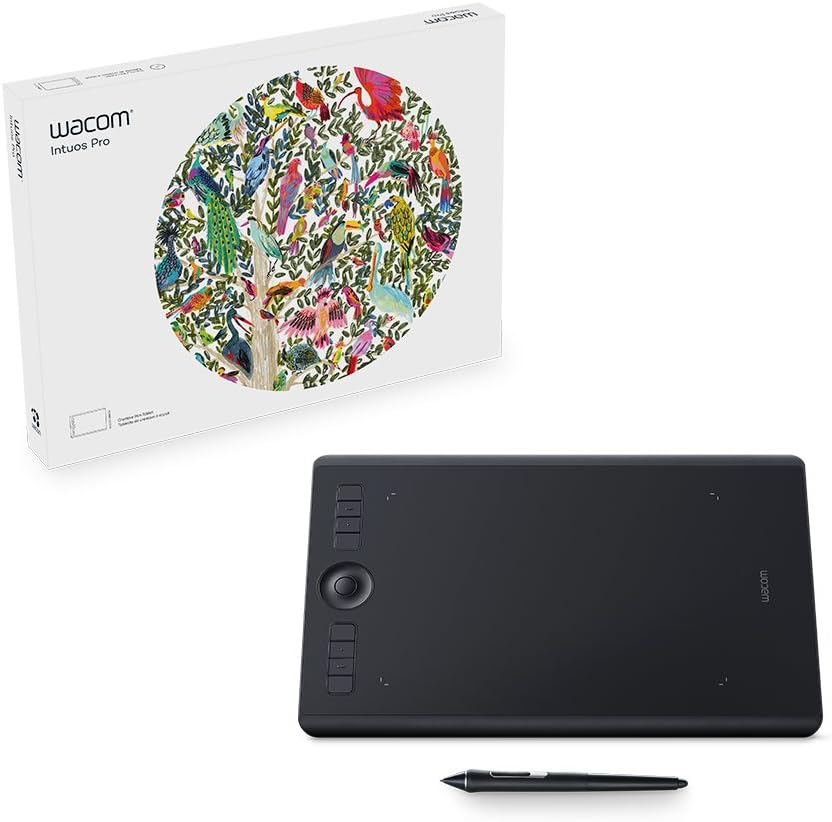
Wacom Intuos Pro
Best Screenless: The Wacom Intuos Pro is the best screenless tablet and the professional standard. It's a pen pad — you draw on its surface while looking at your monitor — and Wacom's refinement shows where it counts: the Pro Pen 2 has class-leading pressure and natural tilt, the textured surface has a paper-like resistance pros love, and Wacom's drivers are the most reliable in the industry (driver crashes and pen lag plague cheaper tablets, and Wacom's stability is much of what you pay for).
Top picks ↓Related articles


Wacom Intuos Pro
The professional screenless standard — class-leading Pro Pen 2 pressure and tilt, a paper-like textured surface, ExpressKeys and a touch ring, and the industry's most reliable drivers. The benchmark for illustrators and retouchers; the priciest screenless option, with a screenless learning curve.
The Wacom Intuos Pro is the best screenless tablet and the professional standard. It's a pen pad — you draw on its surface while looking at your monitor — and Wacom's refinement shows where it counts: the Pro Pen 2 has class-leading pressure and natural tilt, the textured surface has a paper-like resistance pros love, and Wacom's drivers are the most reliable in the industry (driver crashes and pen lag plague cheaper tablets, and Wacom's stability is much of what you pay for). It's built to pro standards with a large active area, ExpressKeys, a touch ring, multi-touch, a battery-free pen, and seamless compatibility with every major creative app on Mac and Windows. It's the priciest screenless option and screenless drawing has a learning curve, but for the most reliable, refined professional pad, it's the benchmark.
Pros
- ✓Class-leading pen pressure, tilt, and paper-like feel
- ✓Industry's most reliable, stable drivers
- ✓ExpressKeys, touch ring, battery-free pen
- ✓Seamless compatibility with all major creative apps
Cons
- ✗Most expensive screenless option
- ✗Screenless workflow has a learning curve

Xp Pen Deco Pro
The value screenless pad — a large area, battery-free 8,192-level tilt pen, aluminium build, and a handy dial, delivering most of the Wacom experience for a fraction of the price. Drivers are now reliable for most; the smart-value pro/student choice.
The XP-Pen Deco Pro delivers most of the Wacom screenless experience for a fraction of the price. It offers a large drawing area, a battery-free pen with 8,192-level pressure and tilt, a sleek aluminium build, and handy extras like a dial/roller and shortcut keys. In day-to-day drawing the pen performance is genuinely close to Wacom's, and XP-Pen's drivers have improved enormously to become reliable for most users. For students, hobbyists, and budget-conscious working artists, it capably covers illustration, photo editing, and design with a build and feature set that punch above the cost, and it works across Windows, Mac, and often Android and Chromebook. Wacom's drivers and pen feel are still marginally more refined, but the gap has narrowed dramatically and the value is excellent.
Pros
- ✓Large area, 8,192-level tilt pen, aluminium build
- ✓Handy dial and shortcut keys
- ✓Drivers now reliable for most users
- ✓A fraction of the Wacom price
Cons
- ✗Drivers/pen feel marginally behind Wacom
- ✗Shallower pro ecosystem and support

Huion Kamvas 13
The best value pen display — a 13-inch full-HD laminated screen (reduced parallax) you draw directly onto, with a high-pressure tilt pen, at a price that makes screen-drawing affordable. The sweet spot for getting into intuitive direct-on-screen art.
The Huion Kamvas 13 is the best value way to draw directly on a screen — a pen display where the image appears on the tablet itself, so you draw right onto your artwork like paper, far more intuitive than a screenless pad for many people. It's a 13-inch full-HD laminated display (laminating reduces parallax, the gap between pen tip and line) with a high-pressure, tilt-supporting battery-free pen, at a price that makes screen-drawing genuinely affordable. Huion has become a favourite for delivering pen-display quality that used to cost far more. It needs to connect to and draw power from a computer (not standalone), and Wacom's drivers are still a touch more bulletproof, but for the sweet spot of size, quality, and price in direct-on-screen drawing, it's the standout.
Pros
- ✓Draw directly on a 13-inch laminated HD screen
- ✓Reduced parallax, high-pressure tilt pen
- ✓Makes screen-drawing genuinely affordable
- ✓Great size-quality-price balance
Cons
- ✗Must connect to and be powered by a computer
- ✗Drivers a touch behind Wacom

Wacom One 12
The Wacom pen-display gateway — a 12-inch screen tablet bringing Wacom's trusted pen tech, driver reliability, and build to direct-on-screen drawing at an accessible price, often bundled with software. Costs more than comparable Huion for the Wacom reliability.
The Wacom One 12 is the entry point into Wacom's pen displays — a 12-inch screen tablet bringing Wacom's trusted pen technology, driver reliability, and build quality to direct-on-screen drawing at a more accessible price than the high-end Cintiq line. It's aimed at beginners and hobbyists who want to draw on a screen with the confidence of the Wacom name and ecosystem, often bundled with creative software to get started. It typically costs more than a comparable Huion for similar specs — you're paying for Wacom's reliability and support — and it's an entry display rather than a pro one, but for someone who wants a screen tablet and specifically trusts Wacom, it's the reassuring gateway.
Pros
- ✓Draw directly on screen with Wacom reliability
- ✓Trusted drivers and build quality
- ✓Accessible entry to Wacom displays
- ✓Often bundled with creative software
Cons
- ✗Pricier than comparable Huion displays
- ✗Entry-level rather than pro display

Gaomon M10k
The rock-bottom budget pad — a large screenless tablet with capable specs (high pressure, tilt, shortcut keys) at a remarkably low price. The ideal no-commitment first tablet for beginners and students, accepting less build and driver polish than premium brands.
The GAOMON M10K is the rock-bottom budget pick — a large screenless pen pad with surprisingly capable specs (high pressure sensitivity, tilt on many models, a generous active area, and shortcut keys) at a remarkably low price. It's the ideal first tablet for an absolute beginner, a student testing whether digital art is for them, or anyone who wants to try a graphics tablet with no real financial commitment. The build, pen feel, and driver polish won't match the premium brands, and the lesser-known-brand driver risk is higher, but the core functionality is all there. As the cheapest sensible entry into digital drawing, it lets you learn the craft before investing in a Wacom or a pen display.
Pros
- ✓Capable specs (pressure, tilt, keys) very cheaply
- ✓Large active area for the price
- ✓Ideal no-commitment first tablet
- ✓Lets beginners learn before upgrading
Cons
- ✗Build, pen feel, and drivers behind premium brands
- ✗Higher driver risk from a lesser-known brand
Which one is right for you?
For professionals wanting the most reliable pad
Wacom Intuos Pro
Class-leading pen feel, tilt, and the industry's most stable drivers make it the screenless benchmark for illustrators and retouchers who can't afford pen lag.
For most artists on a budget (screenless)
Xp Pen Deco Pro
A large, well-built pad with a tilt pen and now-reliable drivers delivers most of the Wacom experience for a fraction of the price.
For drawing directly on a screen affordably
Huion Kamvas 13
A 13-inch laminated HD display with reduced parallax and a tilt pen makes intuitive direct-on-screen drawing genuinely affordable.
For a screen tablet with the Wacom name
Wacom One 12
Wacom's trusted pen tech, driver reliability, and build in an accessible 12-inch display are the reassuring gateway for beginners who want a screen.
For trying digital art with no commitment
Gaomon M10k
Capable pressure, tilt, and a large area at a rock-bottom price make it the ideal first tablet to learn on before investing more.
Top pick (screenless): Wacom Intuos Pro
The Wacom Intuos Pro is the best screenless graphics tablet and the long-standing professional standard for good reason. It's a pen pad — you draw on its surface while looking at your computer monitor — and Wacom's decades of refinement show in the things that matter most: the Pro Pen 2 has class-leading pressure sensitivity (8,192 levels) and tilt recognition that feels natural and precise, the textured drawing surface has a paper-like resistance that pros prefer, and crucially, Wacom's drivers are the most reliable and stable in the industry. That last point is underrated — driver crashes and pen lag are the bane of cheaper tablets, and Wacom's rock-solid software is a big part of what you pay for.
It's built to professional standards: a large, comfortable active area, customisable ExpressKeys and a touch ring for shortcuts, multi-touch gesture support, and seamless compatibility with every major creative application (Photoshop, Illustrator, Clip Studio, Procreate's desktop equivalents, and more) across Mac and Windows. The pen is battery-free and never needs charging. For illustrators, photo retouchers, and designers who want the most reliable, refined, professional screenless experience, it's the benchmark.
The honest caveats: it's the most expensive screenless option here by a wide margin, and being screenless means a learning curve — you draw on the pad while watching the screen, which takes practice (though many pros prefer it long-term for ergonomics and price-versus-a-display-tablet). If you specifically want to draw directly on a screen, see the Kamvas below. But for the gold-standard screenless tablet that simply works, the Intuos Pro is the pick.
Best value screenless: XP-Pen Deco Pro
The XP-Pen Deco Pro is the value screenless pad that delivers most of the Wacom experience for a fraction of the price. It offers a large drawing area, a battery-free pen with high pressure sensitivity (8,192 levels) and tilt support, a sleek aluminium build, and handy extras like a physical dial/roller and shortcut keys for zooming and scrolling. In day-to-day drawing, the pen performance is genuinely close to Wacom's, and XP-Pen's drivers have improved enormously over the years to become reliable for most users.
What makes it the value standout is how little you give up for the big price saving. For students, hobbyists, and even working artists on a budget, the Deco Pro covers digital illustration, photo editing, and design work capably, with a build and feature set that punch well above its cost. It's compatible with the major creative software and works across Windows, Mac, and often Android and Chromebook.
The trade-offs versus the Intuos Pro are real but modest for many: Wacom's drivers are still a touch more bulletproof, the pen feel and tilt are marginally more refined, and Wacom's professional ecosystem and support are deeper. But the gap has narrowed dramatically, and for anyone who wants a large, capable, well-built screenless tablet without paying professional-Wacom money, the XP-Pen Deco Pro is the smart-value choice.
Draw directly on a screen, plus budget picks: Huion Kamvas 13, Wacom One 12, GAOMON
The Huion Kamvas 13 is the best value way to draw directly on a screen — a pen display, where the image appears on the tablet itself so you draw right onto your artwork like paper, which is far more intuitive than a screenless pad for many people. It's a 13-inch full-HD laminated display (laminating the glass to the screen reduces parallax, the gap between the pen tip and the line) with a high-pressure, tilt-supporting battery-free pen, at a price that makes screen-drawing genuinely affordable. Huion has become a favourite for delivering pen-display quality that used to cost far more, and the Kamvas 13 is the sweet spot of size, quality, and price for getting into direct-on-screen drawing.
The Wacom One 12 is the entry point into Wacom's pen displays — a 12-inch screen tablet that brings Wacom's trusted pen technology, driver reliability, and build quality to direct-on-screen drawing at a more accessible price than the high-end Cintiq line. It's aimed at beginners and hobbyists who want to draw on a screen with the confidence of the Wacom name and ecosystem, often bundled with creative software. It typically costs more than the comparable Huion for similar specs — you're paying for the Wacom reliability and support — but for someone who wants a screen tablet and trusts Wacom, it's the gateway.
The GAOMON M10K is the rock-bottom budget pick — a large screenless pen pad with surprisingly capable specs (high pressure sensitivity, tilt on many models, a generous active area, and shortcut keys) at a remarkably low price. It's the ideal first tablet for an absolute beginner, a student testing whether digital art is for them, or anyone who wants to try a graphics tablet without any real financial commitment. The build, pen feel, and driver polish won't match the premium brands, but the core functionality is all there, making it the smart cheap entry into digital drawing.
How to choose: screen vs screenless, pen specs, drivers, and software
Decide screen versus screenless first, because it's the defining choice. A screenless pen pad (Wacom Intuos Pro, XP-Pen Deco Pro, GAOMON) is cheaper, more durable, more portable, and better for ergonomics (you sit upright looking at your monitor), but you draw on the pad while looking at the screen — a hand-eye coordination that takes practice and never feels as natural as paper to some. A pen display (Huion Kamvas, Wacom One) lets you draw directly onto the on-screen artwork, which is far more intuitive and immediate, at higher cost, more setup (it needs to connect to and be powered by a computer), and less portability. Beginners often find a display more intuitive; budget-conscious and ergonomics-focused users often prefer a pad. Pick based on how you want to work.
Check pen specs, but know that most modern tablets are good enough. Pressure sensitivity (commonly 8,192 levels across all these tablets) controls how line width and opacity respond to how hard you press — more levels sound impressive, but beyond a few thousand the difference is imperceptible, so don't overweight this number. Tilt support (the pen responding to its angle, useful for shading and natural brush behaviour) is more meaningful and worth having for illustration. A battery-free pen (all the picks here) is preferable — no charging, lighter. The pen feel and surface texture matter to comfort, and this is where Wacom's refinement shows, but every tablet here has capable pen hardware.
Weight driver reliability and software compatibility, the things that cause real frustration. The single most common complaint with budget tablets is driver problems — pen lag, disconnections, or crashes — and this is where Wacom has historically led and why pros pay for it, though XP-Pen and Huion drivers have become reliable for most users. Confirm the tablet supports your operating system (Windows/Mac, and Android or Chromebook if relevant) and your creative software (all here work with Photoshop, Illustrator, Clip Studio, Krita, and the major apps). And match the active area or screen size to your space and budget — bigger is more comfortable but costs more and takes more desk room. Buy the screen/screenless type that fits your workflow, a tablet with tilt and a battery-free pen, and a brand whose driver reliability you trust, and you'll be set for years.
